Showing posts with label Windows. Show all posts

Sunday, November 6, 2011

Windows XP Task Manager Disabled By Virus / Administrator


You will get task manager disabled message in following two circumstances:

1. When you right click on task bar

How to enable task manager in Windows Vista/ XP [Registry/regedit]


For Other Windows XP Home Version Users:

If you don't have Windows XP Professional, then you'll need to edit the registry manually.

Click Start, then click Run, type in regedit, and click on OK.

Expand these registry keys in turn:

• HKEY_CURRENT_USER
• Software
• Microsoft
• Windows
• CurrentVersion
• Policies
• System

You should see something similar to this:


How to disable task manager in Windows Vista/ XP [Group policy/gpedit]


• Select option Enabled and it will prevent users to monitor tasks and services running in the system.

Task ManagerPermanent Link:

How to disable task manager in Windows Vista/XP [Registry/RegEdit]


• In order for this to take effect, you may need to restart your system.


The next time anyone tries to call the Task Manager, they’ll see an error:


How to Increase Broadband Connection Speed in Windows XP/Vista


This trick requires Standard Network Interface cards (NIC) that are connected to ADSL modems, or when using any directly-connected USB ADSL modem.

To speed up the Internet connection speed we need to configure a special buffer in the computer's memory in order to enable it to better deal with interrupts made from the NIC or the USB modem.

This tip is only recommended if you have 256MB RAM or higher.


Step 1 - Identify the IRQ used by the NIC/USB modem

Follow these steps:

1. Open the System Information tool by running MSINFO32.EXE from the Run command.

2. Expand System Summary

Tuesday, July 6, 2010

Windows 8 Leaked Concepts

Confidential Microsoft documents were recently leaked, revealing some of the company's plans for Windows 8 and there will be 3  PC categories in Windows 8, according to PC World.
  1. Workhorse PC
  2. Lap PC 
  3. Family Hub PC
      Workhorse PC is a basic in-home computer with motion sensor and facial recognition technology applied to recognize and power-on when the user enters the room. The Lap PC is a tablet  with facial recognition features that pause a game being played on the system when the user looks away from the screen. The company also has plans for media functions with the Family Hub PC, which interacts with televisions and large-screen displays.

Workhorse PC (My PC Knows Me)
The basic idea is that you walk into the room where your PC is, and the proximity sensor detects your movements and wakes the PC.As you sit down at the desk, your PC is already on so it can scan your face to log you in.The computer can also switch between different user accounts with the facial recognition feature.
Once you've finished using the computer and leave the room, the proximity sensor detects that no one is around, logs you off, and puts the computer to sleep.


Lap PC
The Lap PC is basically a tablet. The Lap PC would include an accelerometer used for gaming and to adjust screen orientation between portrait and landscape modes. The Windows tablet would also have ambient light detection, a touch-based interface, virtual keyboard, and location-aware capability.

Leaked Documents:


Sunday, January 31, 2010

Add "Safe Mode" to Boot menu in XP

There are several reasons why you may wish to boot your system into Safe Mode:
  • in order to install some drivers correctly and reliably
  • to carry out housekeeping tasks such as disk defragmentation
  • to perform any number of trouble-shooting tasks
The traditional way of booting to Safe Mode is to press the F8 key during the boot process, to display a list of available boot options.
You can add safe mode option directly to your boot menu by modifying boot.ini file...
boot.ini is usually located in root of C drive and is hidden file.... If you are not intrested in changing settings to display hidden files just right-click on "MY COMPUTER" and choose Properties.On the Advanced tab, click the Settings button, which bring up the Startup and Recovery window.Click the Edit button; the boot.ini file will be opened in Notepad. Before editing it is recommended to save that file with other name so that it may be easy to restore
Then... locate the [Operating Systems] section.
Copy the entry beneath this that relates to your default operating system, and paste it on the line below.
Add "/safeboot:minimal /sos /bootlog" to the end of the line you just copied. If you want networking support, then change "minimal" to "network".
Your Boot.ini file must be look soomething like this after editing..


.

Saturday, January 30, 2010

GOOGLE closing off support for IE6


This has not been the greatest start to the year for Microsoft’s Internet Explorer browser.Days after news of the latest security flaw in Internet Explorer, Google is phasing out support for IE6 for two of its Google Apps products, Docs and Sites.
For both the consumer and enterprise versions of Google Docs and Sites, the only browsers that will be fully compatible are Microsoft Internet Explorer 7.0+, Mozilla Firefox 3.0+, Google Chrome 4.0+ and Safari 3.0+. The phase out will take place beginning March 1. While you’ll still be able to access Docs and Sites from IE6, you will have restricted functionality and many features won’t work, making the applications for the most part useless. We hear that Google will be phasing out IE6 support for the remainder of Google’s major products, including Gmail and Calendar, over the coming year. This isn’t Google’s first move to phases out IE6 functionality for its products. Last July, the search giant began phasing out YouTube support for the Microsoft browser. For users of IE6, the online video site began pointing to ‘modern’ browsers like Google Chrome, Internet Explorer 8 and Firefox 3.5 as alternatives. A similar prompt will now take place on Docs and Sites for users who are browsing from IE6. 

Sunday, January 17, 2010

7stacks

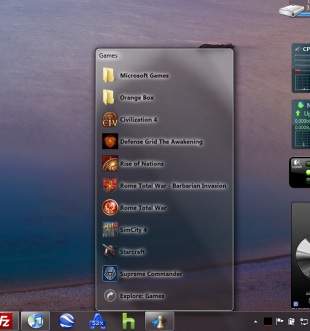
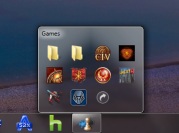
7stacks is an easy to use, free app that lets Windows 7 (and Vista and XP) users have "stacks" of icons in their Taskbar (in 7) or QuickLaunch Toolbar (in Vista and XP). By using stacks, users can reduce icon clutter, and combine a group of related icons into a single icon. For instance, if you use application suites such as Microsoft Office, OpenOffice, or Adobe CS4, you can have all the suite's icons combined into one icon!
You can also use it to browse and access documents within a folder very quickly. Usually, when you want to edit a series of frequently used documents, you'd have to either launch the app, and go to File|Open, or open the (My) Computer icon and go into your (My) Documents folder and pick the file you want. With 7stacks, just create a stack to that document's folder, and open that document in a couple of clicks.
  
Download 7Stacks

Features:
  • In 7 and Vista, 7stacks uses Aero, making the stacks look like part of Windows itself.
  • Browse subfolders within a stack, just like in OS X Snow Leopard.
  • 3 different styles of stacks: Normal, Grid, and Menu
    • Normal displays a stack of icons vertically, with a text description next to it.
    • Grid displays a "squarish" grid of icons only; useful when displaying a large number of items like document folders.
    • Menu displays a cascading menu of items, with a very small icon and a name next to it. Hover over subfolders to browse inside those folders.
  • In Windows 7, create a new stack by right-clicking on any stack and selecting "Create New Stack" from the JumpList entry.
  • In Menu mode, 7stacks doesn't even need to be in a toolbar. You can use it right from your desktop, or any other folder.
  • Pin up to 10 different stacks on the Windows 7 taskbar 


Twitter Delicious Facebook Digg Stumbleupon Favorites More

 
Developed by Avinash | My Site